Find Your Welcome Email: Check your inbox for the welcome email we’ve sent you.
Tap to Chat: Locate and tap on the “Chat with Sunny” link in the email to launch Sunny in your web browser of choice.
Once Sunny is Up and Running, Bookmark it According to Your Device.
For Apple iPhone (Using Safari)
Tap the Share Icon It’s the square with an upward arrow at the bottom of your screen.
Select ‘Add to Favorites’ or ‘Add Bookmark’ Choose where you’d like to save it.
Tap ‘Save’.
For Android Devices (Using Google Chrome)
Tap the Three Dots You’ll find this menu icon at the top-right corner of the screen.
Choose ‘Bookmark’ This will open a dialogue box.
Click to Chat: Locate and click on the “Chat with Sunny” link in the email to launch Sunny in your web browser of choice.
Once Sunny is Up and Running, Bookmark it According to Your Browser.
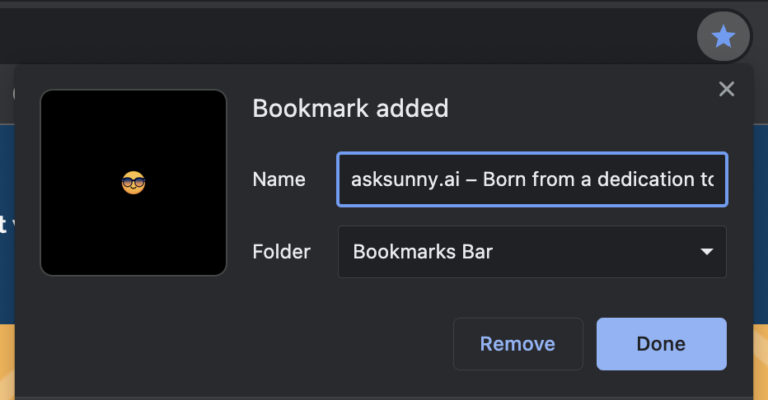
Click on the star icon, usually found at the end of the address bar.
Choose a folder to save it in, or leave it on the bookmarks bar for easy access.
Click ‘Done’.
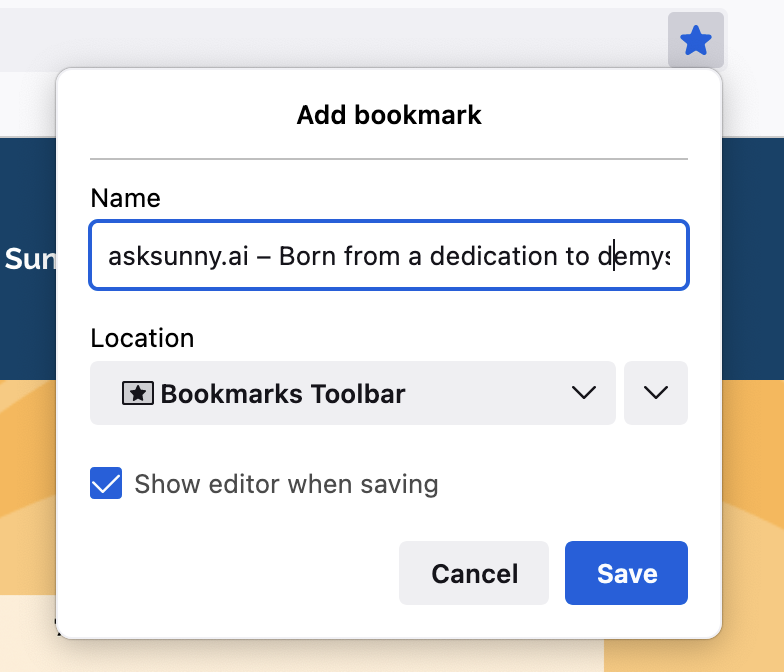
Click on the star icon in the address bar.
Select where you want to save the bookmark—like the bookmarks menu or toolbar.
Hit ‘Done’.
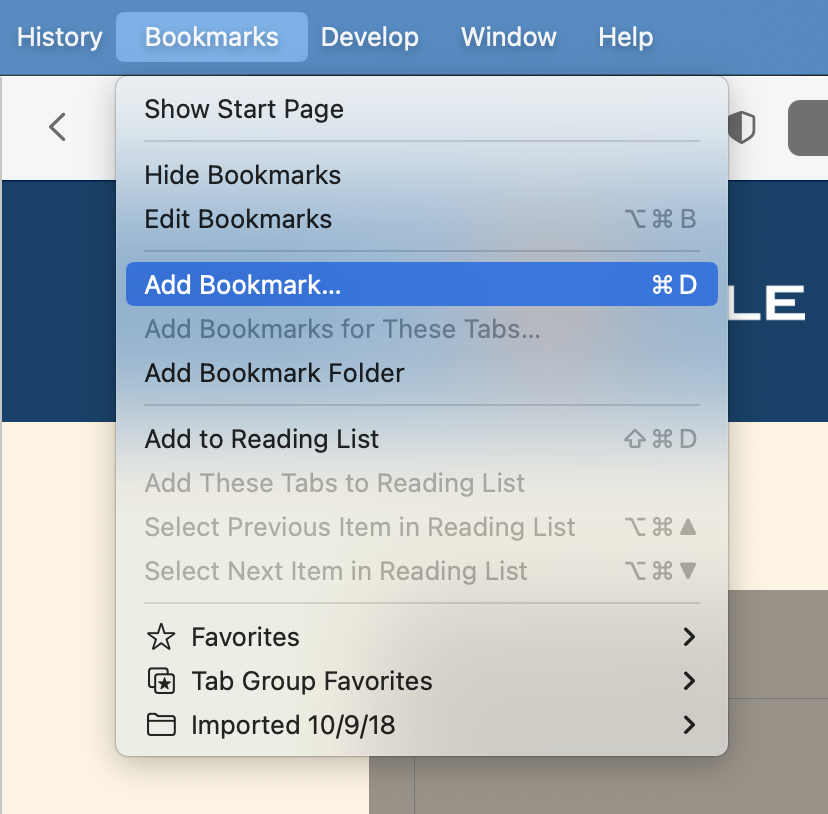
Click on ‘Bookmarks’ in the menu bar at the top.
Select ‘Add Bookmark’.
Choose where to save it and click ‘Add’.